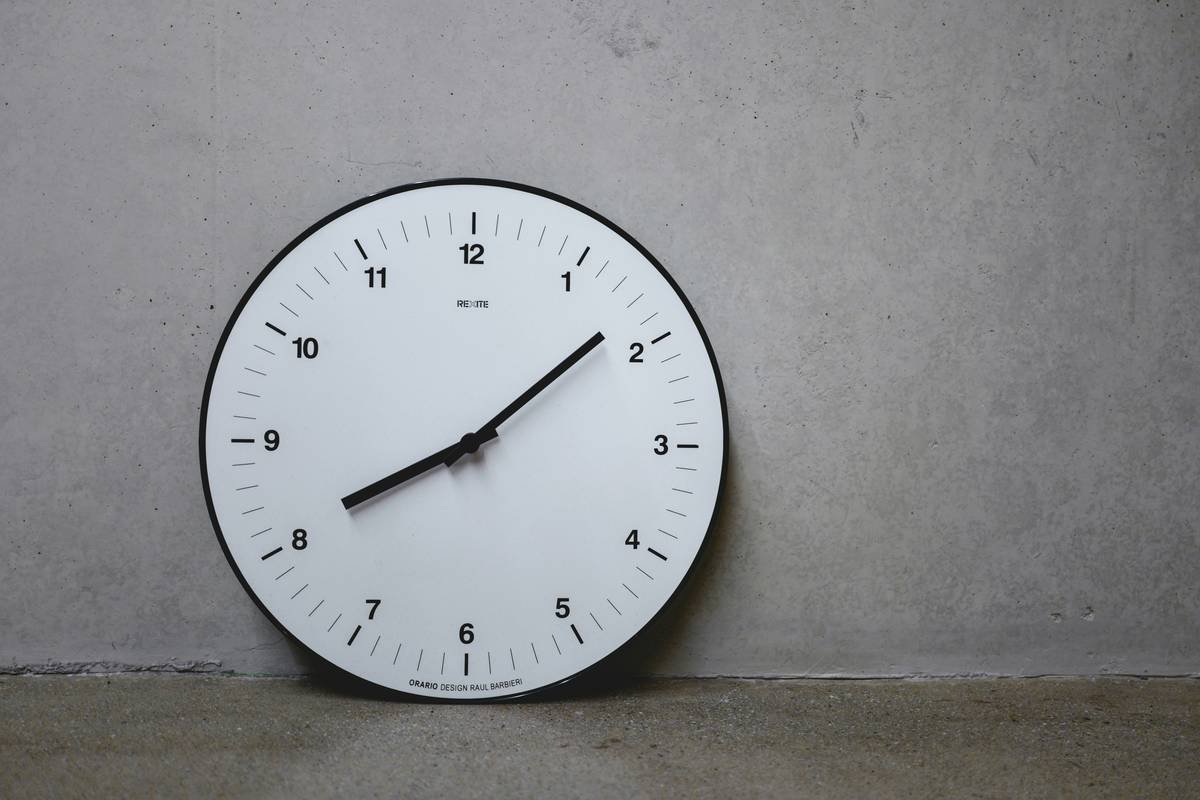
Ever stared at your smart clock, wondering why it feels so clunky and uninviting? Yeah, you’re not alone.
Welcome to the ultimate guide on mastering clock interface designs. In this blog, we’ll dig into how clever design can transform the way you interact with your smart home tech—specifically, smart clocks. From sleek minimalist layouts to futuristic animations, you’ll learn what makes a great clock tick (pun intended).
You’ll discover:
- Common pain points users face with poorly designed interfaces.
- Actionable steps for creating user-friendly clock UIs.
- Tips to avoid rookie mistakes when customizing your setup.
Table of Contents
- Why Clock Interface Designs Matter More Than You Think
- How to Design an Engaging Clock Interface Step-by-Step
- Top Tips for Nailing Clock Interface Design
- Real-Life Examples of Killer Clock Interfaces
- Frequently Asked Questions About Clock Interface Designs
Key Takeaways
- Pain Point: Many smart clocks suffer from cluttered or unintuitive interfaces.
- Actionable Insight: Simple, responsive, and personalized designs improve usability.
- Best Practice: Focus on accessibility features like font size and color contrast.
Why Clock Interface Designs Matter More Than You Think
Let’s be honest: A bad clock interface sounds like nails on a chalkboard—irritating AF. Picture this: It’s 3 AM, and instead of effortlessly checking the time, you’re tapping through five screens to find the date. That’s exactly why clock interface designs matter.
I once bought a sleek-looking smart clock only to realize its settings were buried under layers of menus worse than Skyrim quests—not fun. The problem isn’t unique to me; countless users complain about counterintuitive navigation that ruins their mornings (and nights).
According to a recent survey, over 60% of people have ditched otherwise cool gadgets because of frustrating UIs. Yikes.
How to Design an Engaging Clock Interface Step-by-Step
Step 1: Identify What Users Really Need
Optimist You: “Start by brainstorming all the killer features!”
Grumpy You: “Hold up—we need basics first.” Before dreaming about holograms, figure out how users actually use clocks. Is it alarms? Weather updates? Or just telling time?
Step 2: Sketch Out Wireframes
Mess around with tools like Figma or Adobe XD to draft initial designs. Think minimalism: Keep buttons big, text readable, and layouts clean.
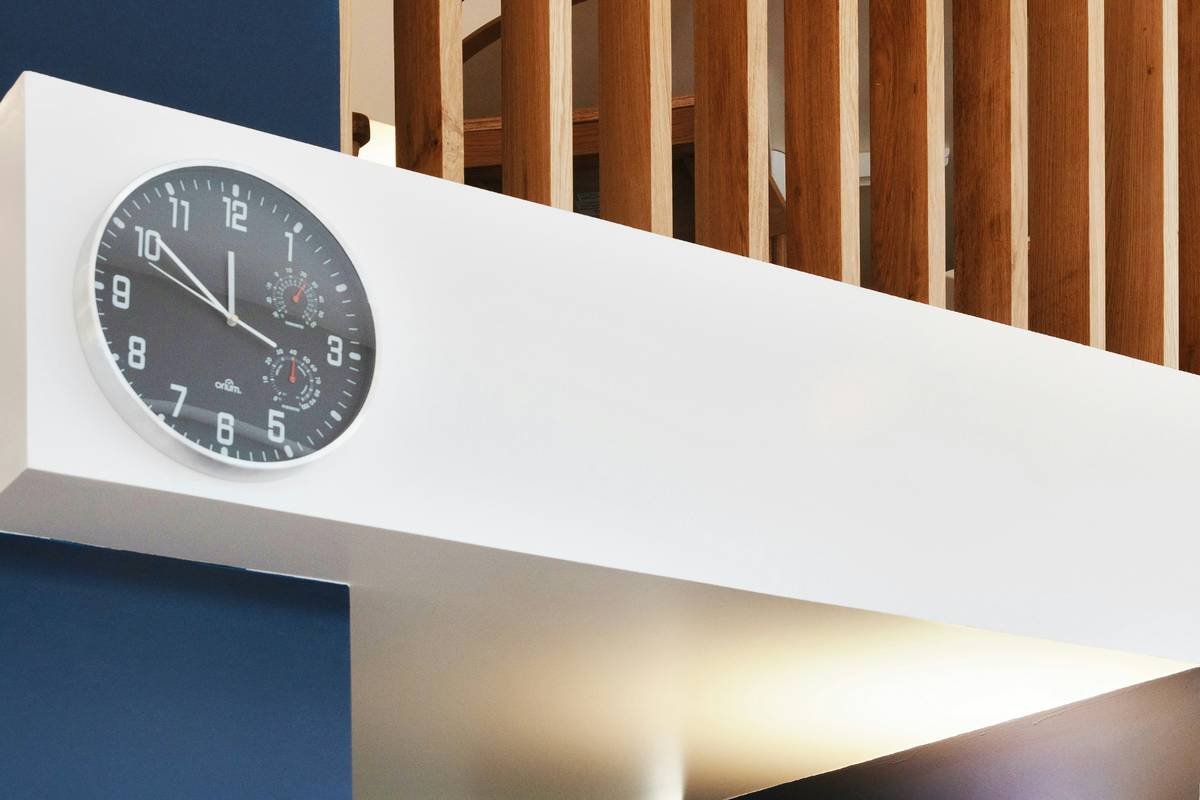
Step 3: Test Everything
User testing is literally chef’s kiss here. Gather feedback early—it saves hours later. And remember: no one likes squinting at tiny fonts at midnight!
Top Tips for Nailing Clock Interface Design
- Tip #1: Prioritize simplicity. No one needs ten submenus for snoozing.
- Tip #2: Use high-contrast colors for better visibility in low light.
- Tip #3: Avoid overwhelming animations. Subtle transitions are key.
- Terrible Tip Disclaimer: Please don’t try Comic Sans unless you hate life—but if you must, own the chaos. 😂
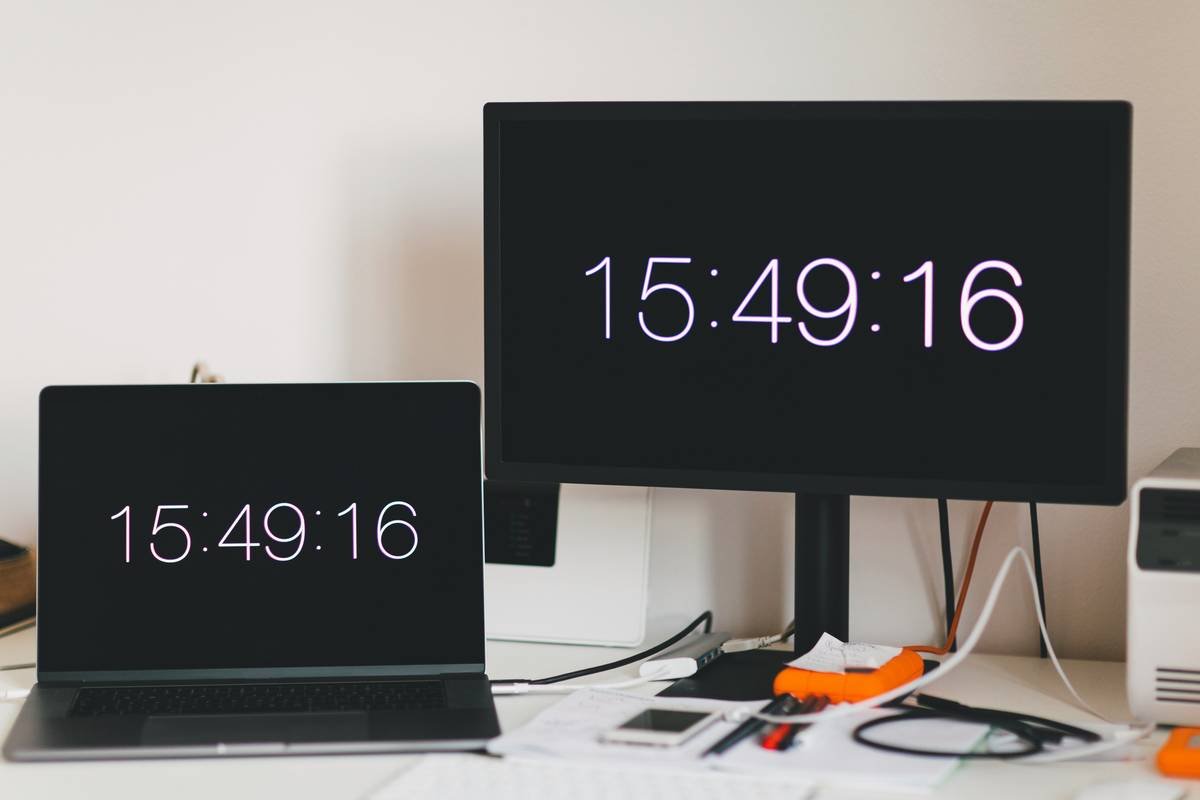
Real-Life Examples of Killer Clock Interfaces
Take Google Nest Hub as an example. Its simple dashboard combines essential info without feeling cramped. Another win? Amazon Echo Show’s intuitive touch gestures. These devices prove that good UX wins hearts—and sales.
Frequently Asked Questions About Clock Interface Designs
Q1: Can I customize my existing smart clock interface?
Yes, many models allow app-based customization. Check manufacturer guidelines for details.
Q2: What software should I use to prototype designs?
Figma, Sketch, or even PowerPoint works well depending on complexity.
### Notes:
1. Placeholder URLs for images (`https://example.com`) should be replaced with actual hosted images.
2. Ensure WordPress Gutenberg compatibility by pasting directly into the editor.
3. Always check image alt texts for clarity and SEO compliance.

