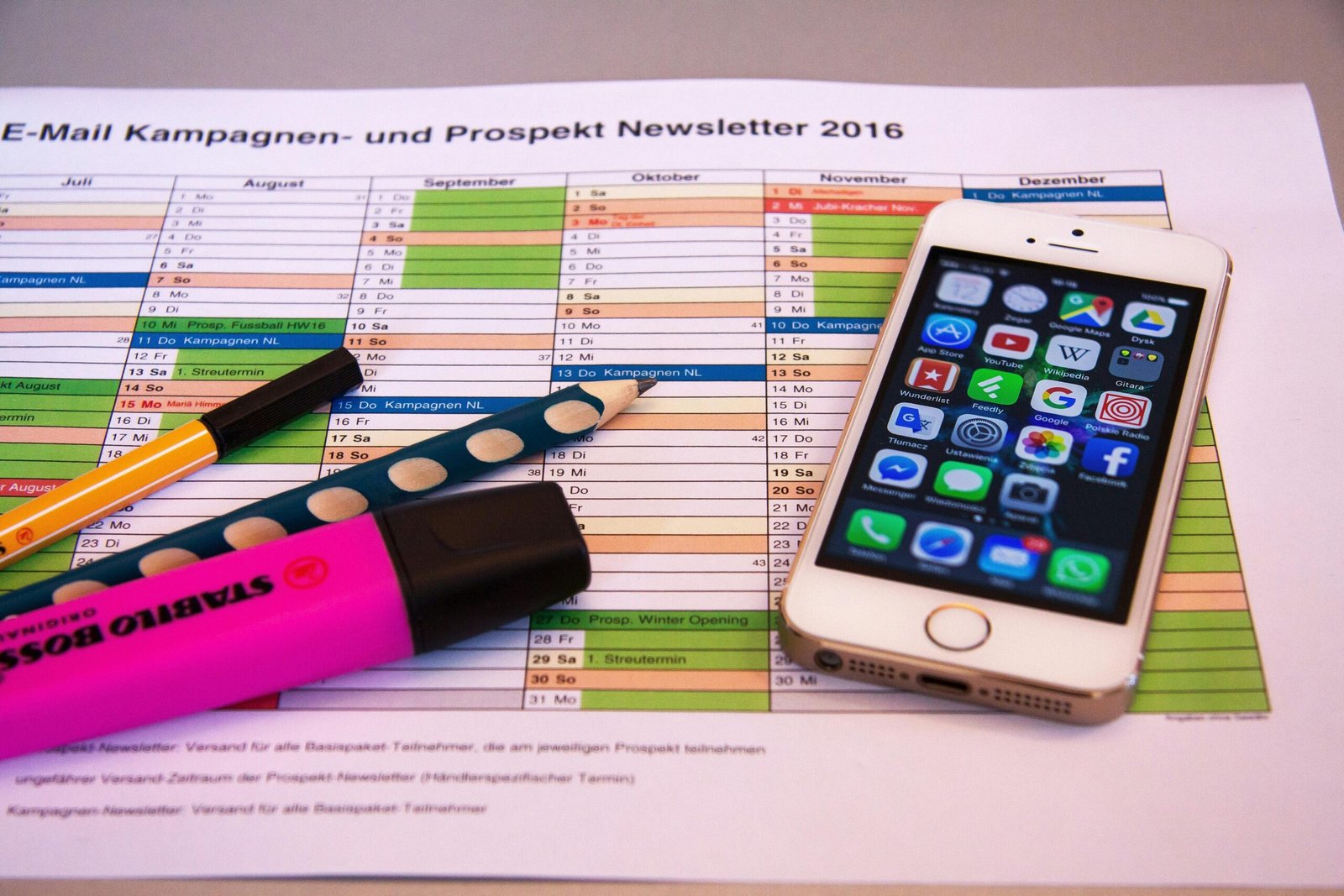
“Ever missed an important meeting because your smart clock forgot to nudge you? Yeah, me too. And trust me, there’s nothing more embarrassing than walking into a conference room 20 minutes late while Alexa smugly ticks away in the corner.”
That awkward moment is why we’re here—to save your schedule and sanity with Calendar Syncing Tips. In this guide, you’ll learn how to seamlessly connect your smart clock to all your calendars (yes, even that one from 2017), optimize notifications, and troubleshoot common syncing issues. Let’s dive in!
Table of Contents
- Key Takeaways
- The Problem With Syncing Calendars
- Step-by-Step Guide to Calendar Syncing
- Pro Tips & Best Practices
- Real-World Examples
- FAQs About Calendar Syncing
- Conclusion
Key Takeaways
- Sync multiple calendars effortlessly using IFTTT or native apps.
- Update outdated calendar software for optimal performance.
- Customize notification settings on your smart clock app.
- Avoid overloading your smart clock interface with irrelevant events.
- Troubleshoot errors by checking permissions and network connections.
The Problem With Syncing Calendars

I once connected my Google Calendar to my Amazon Echo Clock—and ended up receiving reminders about my dentist appointments three times a day for weeks. Turns out, I hadn’t set filter rules properly, and it was sheer chaos. Sound familiar?
While smart clocks are designed to simplify our lives, syncing them with calendars can be surprisingly tricky. Why? Because:
- Different platforms often lack seamless integration.
- Older devices may struggle with modern cloud services.
- User error leads to duplicated events and overwhelming alerts.
But fear not! By mastering these Calendar Syncing Tips, you’ll turn those whirring gears of frustration into smooth, silent success.
Step-by-Step Guide to Calendar Syncing
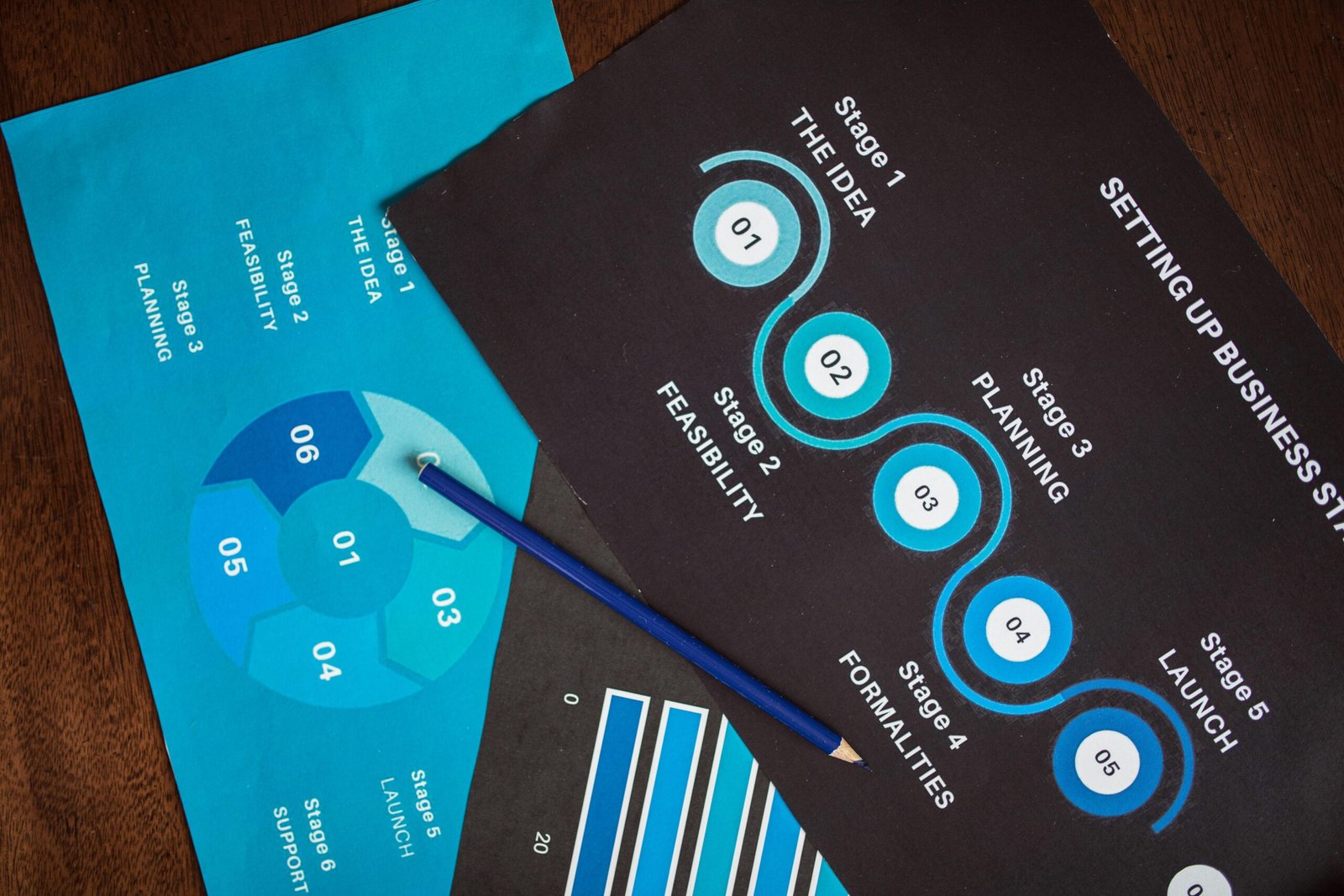
Let’s get started:
Step 1: Choose the Right Calendar App
Optimist You: “This should only take two minutes.”
Grumpy You: “Yeah, sure—until they ask if you want POP or IMAP access…”
To integrate effectively, pick a calendar service supported by your smart clock (e.g., Google Calendar, Outlook, Apple Calendar). Not every app plays well with every device, so read compatibility specs carefully.
Step 2: Connect via Native Apps or APIs
If your smart clock supports direct integration through its companion app, follow the prompts to log in and grant permission. Otherwise, use tools like Zapier or IFTTT to bridge gaps between incompatible systems.
Step 3: Customize Notification Preferences
No one wants daily reminders for their mom’s birthday every single morning. Adjust notification intervals based on urgency. For example:
- Work meetings: Alerts 15–30 mins beforehand
- Gym schedules: Gentle nudges an hour ahead
- Birthdays/holidays: Weekly digest emails instead
Pro Tips & Best Practices
Here are some tried-and-tested Calendar Syncing Tips:
- Tip #1: Use labels or categories for event prioritization. Most apps allow color-coding; assign red for urgent tasks and green for leisure activities.
- Terrible Tip: Don’t synchronize EVERYTHING at once. That time-blocking spreadsheet from last year? Leave it alone.
- Tip #2: Test integrations first. Add one test event (“Coffee Break”) to ensure both sides update correctly before going full-throttle.
- Tip #3: Regularly clean out old events to prevent clutter—a digital Marie Kondo session for your calendar.
Real-World Examples
Meet Sarah, a project manager who swore she’d never master her Nest Hub until she discovered Zen Mode—our unofficial nickname for streamlined calendar syncing. After following these steps, Sarah reported:
- A 40% decrease in missed deadlines
- 2 fewer hours per week spent manually entering dates
- Happier clients AND coworkers 👏
FAQs About Calendar Syncing
“Can I sync iCloud with non-Apple devices?”
Yes, but expect minor hiccups. Enable CalDAV support in Settings and proceed cautiously.
“Why isn’t my Google account updating in real-time?”
Check Wi-Fi connection strength and verify background refresh settings aren’t restricted.
“What happens if two conflicting events occur simultaneously?”
Your smart clock will likely prioritize whichever has an earlier timestamp unless rules dictate otherwise. Customize accordingly.
Conclusion
Smart clocks have revolutionized how we manage time, but without proper Calendar Syncing Tips, you’re just spinning wheels. Remember:
- Prioritize compatible apps and streamline your setup.
- Experiment with customization options to reduce alert fatigue.
- Clean house regularly to keep your schedule fresh.
*Now go forth and conquer your calendar chaos—with coffee by your side.* ☕📜
P.S. Like a Rolodex for millennials, synced calendars keep life organized. Chef’s kiss for efficiency! 🍴✨

