
Ever woken up to the wrong alarm or struggled with a smart clock that just doesn’t get you? Yeah, it’s frustrating when “Alexa, set my alarm” turns into a two-hour tech battle. What if you could customize voice commands so your smart clock actually listens?
In this guide, we’ll explore how Voice Command Customization can transform your smart clock experience. You’ll learn about pain points with default settings, actionable steps to personalize commands, and tips to avoid common mistakes. Ready to take control of your mornings—sans chaos?
Table of Contents
- Key Takeaways
- The Problem with Default Settings
- Step-by-Step Guide to Voice Command Customization
- Tips and Best Practices
- Real-World Examples
- FAQs About Voice Command Customization
Key Takeaways
- Customizing voice commands makes your smart clock more intuitive.
- Avoid using overly complex phrases; simplicity is key.
- Syncing preferences across devices boosts functionality.
- Frequent updates keep voice assistants sharp and responsive.

Why Default Settings Suck (And What You Can Do)
Let me confess something embarrassing: I once spent an entire weekend yelling “Snooze!” at my Google Nest Hub because it didn’t recognize anything but its programmed wake word. Spoiler alert—I was late for brunch.
Here’s why defaults are often problematic:
- Generic responses lack personalization.
- Poor microphone sensitivity leads to missed commands.
- Limited language options alienate non-native speakers.
Tech might claim to be “smart,” but unless tailored to YOU, it’s as useless as Wi-Fi underwater.
Step-by-Step Guide to Voice Command Customization
Optimist You: “This will be easy!”
Grumpy You: “Not until coffee is brewed.” Fair enough. Let’s dive in anyway.
Step 1: Access Your Device Settings
Navigate to your smart clock app (e.g., Alexa, Google Home). Look for sections labeled “Voice Assistant,” “Preferences,” or “Custom Commands.” If lost, check FAQs on the manufacturer’s website.
Step 2: Modify Wake Words
Most clocks let you change wake words like “Hey Siri” or “OK Google.” Choose something unique yet simple—for example, instead of shouting full sentences, pick one trigger phrase like “Morning Routine.”
Step 3: Program Preferred Actions
Teach your device shortcuts! For instance, program “Start My Day” to mean turning off alarms, playing upbeat music, and reading weather reports—all through one command.
Step 4: Sync Across Devices
If you’ve got multiple gadgets connected via smart home ecosystems, ensure all share updated preferences. Few things feel worse than walking into another room and realizing your kitchen Echo Dot ignored your painstaking tweaks.
(Pro Tip: Make sure firmware stays updated—older versions may limit customizability.)
Tips and Best Practices
- Simplicity Rules: Keep commands short (“Lights Off”) rather than verbose (“Please turn off the lights now, thank you”).
- Tone Matters: Speak clearly and confidently—your clock isn’t judging your accent.
- Use Context Cues: Some commands work better when tied to specific times or locations within apps.
- Avoid Overloading: Don’t overload your system with too many customizations—it gets confused easily.
Rant Section: Why Micromanaging Voice Assistants Gets Old Fast
Confession time again: I tried assigning every single task imaginable to my smart clock last year. Result? It became slower, glitchier, and eventually started ignoring me entirely. Moral of the story? Chill out, tech wizard—sometimes less is more.
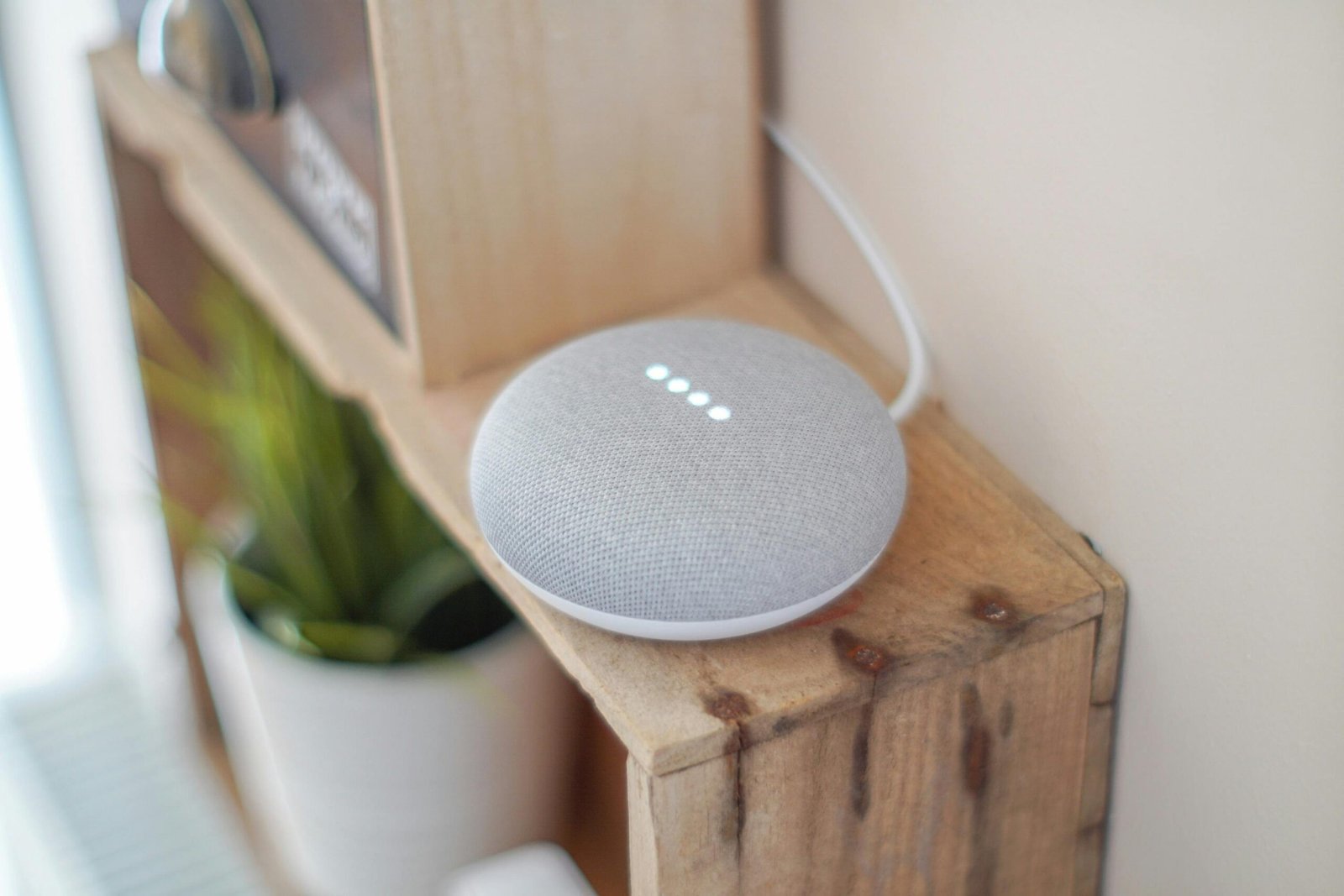
Real-World Examples of Genius Customization
Couple Sue from Minneapolis managed her toddler’s bedtime routine by programming their Amazon Echo Show to automatically dim lights, play lullabies, and announce tomorrow’s weather forecast—all activated by saying “Nighty Night.” Now THAT’S efficiency!
FAQs About Voice Command Customization
Q: Can I teach my smart clock slang terms?
Absolutely! Just go to your assistant’s training tab and add new phrases manually. Example: Teach it “Brew Time” = Start Coffee Machine.
Q: What happens during software updates?
Updates occasionally reset customizations. Always back up changes beforehand!
Q: Is there a limit to custom commands?
Yes, most platforms cap around 50-100 personalized requests per user account due to memory constraints.
Conclusion
Voice Command Customization unlocks endless potential for smarter living. Remember, personalizing your smart clock saves not just minutes but also sanity. From tweaking wake words to syncing routines across ecosystems, the power lies in your hands.
Before we part ways, here’s a little ode to our journey today:
Coffee fuels dreams,
Smart clocks chime with ease,
Morning no longer screams.
(“Like setting up Pokémon Go for the first time—thrilling yet tricky.”)