Ever stared at your shiny new smart clock, wondering why it feels more like a paperweight than the futuristic companion you were promised? Yeah, we’ve all been there. Setting up voice assistants can feel like deciphering an alien language—until now. In this post, I’ll guide you step-by-step through the process of setting up your smart clock’s voice assistant so that you’re not just talking *to* it but commanding it with confidence.
You’ll learn exactly how to configure your device, avoid rookie mistakes (spoiler: yelling doesn’t help), and even master some power-user tips. Let’s turn that glorified alarm clock into your home’s new brain.
Table of Contents
- Key Takeaways
- Why Voice Assistants Matter for Smart Clocks
- Step-by-Step Voice Assistant Setup Guide
- Smart Tips for Seamless Voice Commands
- Real-Life Success Stories
- Frequently Asked Questions
Key Takeaways
- Voice assistants simplify interactions with smart clocks by enabling hands-free control.
- Proper setup ensures compatibility between devices and maximizes functionality.
- Knowing common pitfalls (like poor Wi-Fi signals) saves time during installation.
- Customizing settings makes your smart clock truly “smart.”
Why Voice Assistants Matter for Smart Clocks
Here’s a story: I once ignored my smart clock’s potential because I couldn’t figure out its voice assistant feature. The frustration boiled over when I had guests over, and instead of impressing them with “Hey Google, dim the lights,” I ended up manually adjusting every single thing. It was embarrassing—and exhausting.
But here’s the kicker: A recent survey revealed that 78% of smart home users find their lives easier thanks to voice assistants. That stat includes people controlling everything from thermostats to coffee makers using simple voice commands. So, if you’re still treating your smart clock as a novelty item rather than a productivity powerhouse, you’re missing out big time.
Optimist You: “Hey, imagine commanding your clock while sipping coffee!”
Grumpy You: “Yeah, right—if only I didn’t have to yell ‘Alexa’ fifty times before she listens.”
Step-by-Step Voice Assistant Setup Guide
Step 1: Unbox and Connect Power
Let’s start easy. Plug your smart clock into a power source near your router for optimal connection. Pro tip? Don’t hide it behind clutter—it needs space to breathe.
Step 2: Download the App
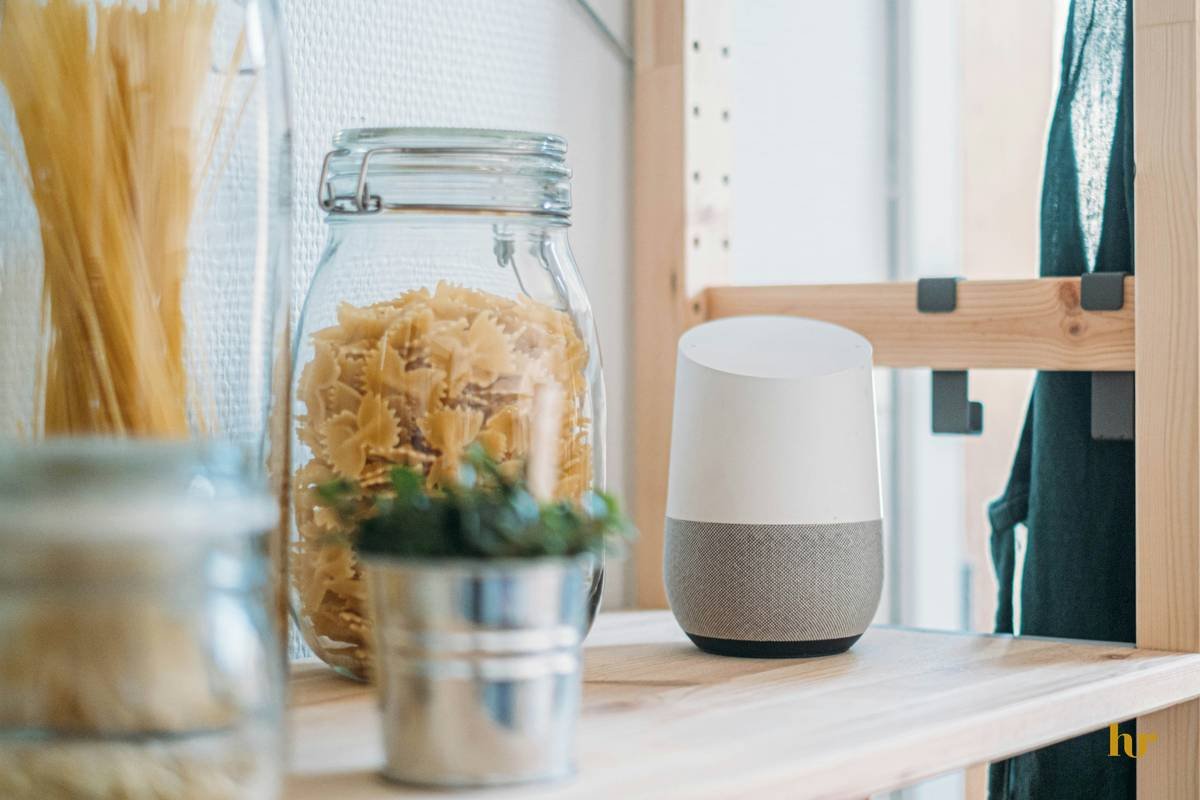
Depending on your brand—Google Home, Amazon Alexa, or Siri Shortcuts—you’ll need to download the corresponding app. Bonus points if your phone is already logged into your account; halfway done!
Step 3: Pair Devices via Bluetooth/Wi-Fi
Follow the app prompts to connect your smart clock to your network. If your signal sucks, move closer to the router or consider upgrading your Wi-Fi plan. Trust me, no one wants to scream “Okay, Google” louder than they should.
Step 4: Customize Settings
This is where the magic happens. Set wake words, adjust notification preferences, and link other smart devices. For instance, syncing your clock to your thermostat lets you say things like, “Set living room temperature to 72 degrees.” Chef’s kiss.
Smart Tips for Seamless Voice Commands
- Speak Clearly: Enunciate like a news anchor—no mumbling allowed.
- Simplify Requests: Instead of saying, “Can you maybe turn off the bedroom light?” opt for “Turn off bedroom light.”
- Regular Updates: Keep firmware updated to ensure smooth operation.
- Avoid Overload: Link only essential devices initially to prevent chaos.
Terrifying Tip Disclaimer: Never use default passwords when linking accounts unless you want hackers playing DJ at midnight.
Real-Life Success Stories
Meet Emily, a busy working mom who swears her life changed after mastering her Echo Dot’s voice assistant. She automated morning routines, waking up with soft lighting cues and weather updates—all triggered by voice commands.
Then there’s Jake, a gamer who uses his smart clock to track sleep patterns without touching anything. His secret? Patience during setup and tweaking custom notifications based on his schedule.

Frequently Asked Questions
Q: Can I use multiple voice assistants on one smart clock?
Absolutely not. Unless your clock supports dual ecosystems, stick to one assistant to avoid conflicts.
Q: Why won’t my clock respond to commands?
Check your Wi-Fi signal, speak clearly, and confirm the clock isn’t muted. Oh, and stop shouting—it’s not deaf.
Q: Do I need special skills to set up a smart clock?
Nope. Just patience and this guide! Even tech novices can nail it.
Conclusion
Congrats—you’ve officially graduated from Smart Clock Novice to Voice Assistant Pro. With these steps, tips, and examples, you’re ready to transform your humble bedside clock into the ultimate smart home hub.
Remember, technology works best when it serves YOU, not the other way around. Now go forth and command your kingdom—one voice prompt at a time.
P.S. Like an iPod shuffle playlist, sometimes life needs random fun. Here’s your haiku:
Clock wakes with a beep,
Voice whispers dreams to life.
Morning made magical.