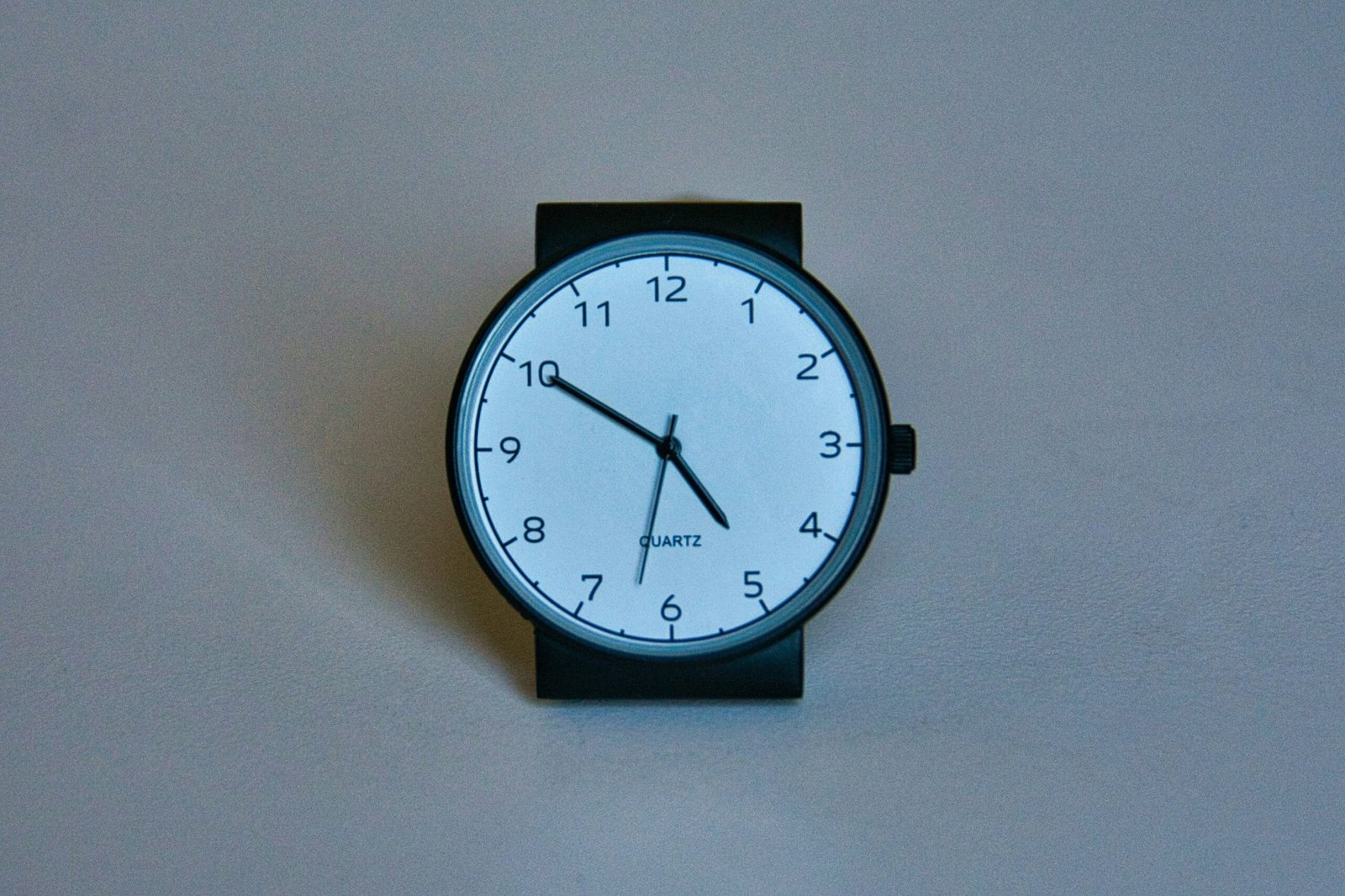
Ever stared at your smart clock, wishing it could do more than just tell time? Yeah, me too. That’s why I went down the rabbit hole of clock widgets—only to discover they can turn your smart home into a productivity powerhouse. But here’s the catch: not all clock widgets are created equal. In this post, we’ll unpack how to use them effectively, optimize your setup, and avoid some rookie mistakes (yes, even I made one). By the end, you’ll know exactly how to make clock widgets work for *you*. Let’s dive in.
Table of Contents
- Introduction to Smart Clocks & Clock Widgets
- Why Clock Widgets Matter in Smart Homes
- Step-by-Step Guide to Setting Up Clock Widgets
- 7 Best Practices for Maximizing Clock Widget Use
- Real-Life Examples: Smart Clock Success Stories
- Frequently Asked Questions About Clock Widgets
- Conclusion: Elevate Your Smart Home Experience
Key Takeaways
- Clock widgets go beyond telling time—they integrate seamlessly with other smart devices.
- Choosing the right widget depends on your specific needs and platform compatibility.
- Avoid cluttering your interface; less is often more when designing your dashboard.
- With proper setup, clock widgets can boost efficiency and simplify daily routines.
Introduction to Smart Clocks & Clock Widgets
Smart clocks have come a long way from their analog ancestors. Today, they’re the central hubs of many smart homes, displaying everything from weather updates to traffic alerts. Enter clock widgets: small, customizable modules that enhance functionality and aesthetics. Think of them as tiny personal assistants living on your smart clock’s screen. Want quick access to your calendar or an always-visible countdown timer? Clock widgets make it possible.
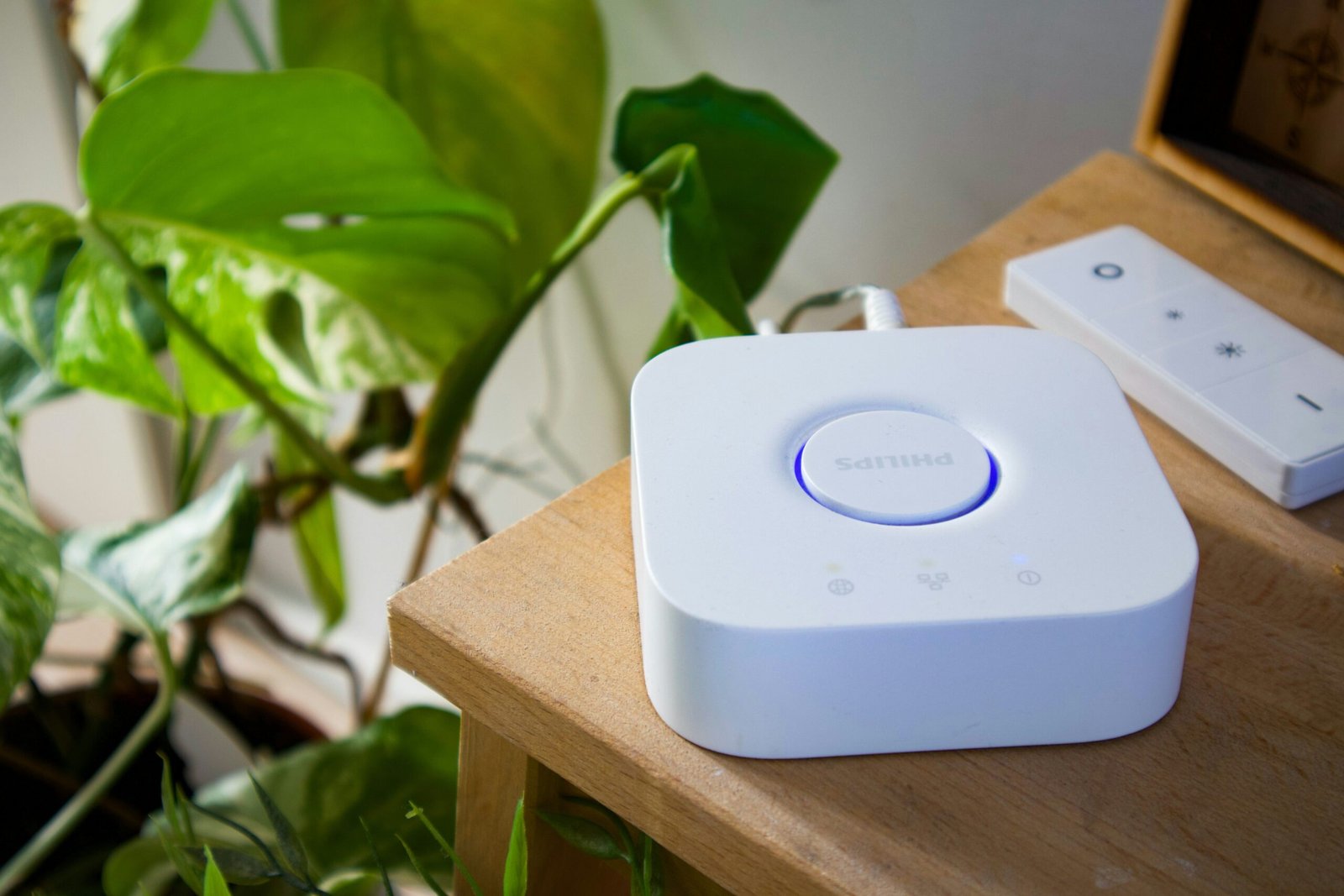
Why Clock Widgets Matter in Smart Homes
Let’s face it—smart home tech isn’t cheap. So why add yet another layer of complexity? Here’s the secret sauce:
- Efficiency: Widgets allow instant access to critical info without opening apps.
- Customization: Tailor your display to match your lifestyle—whether you need reminders, timers, or alarms.
- Integration: Widgets connect seamlessly with other devices, creating a cohesive ecosystem.
Confession time: I once ignored these features because I thought they were “fancy extras.” Spoiler alert: They’re life-changing. Remember my attempt to wake up early using five different alarms scattered across three apps? Yeah, didn’t work out great. A simple clock widget solved the problem overnight.
Step-by-Step Guide to Setting Up Clock Widgets
Step 1: Choose the Right Platform
First things first: Are you using Google Nest Hub, Amazon Echo Show, or something else entirely? Each device has its own app store for downloading compatible widgets. For example:
- Google Assistant works best with Google Calendar and Keep widgets.
- Alexa integrates effortlessly with third-party tools like Todoist.
Step 2: Explore Available Widgets
Browse through available options. Some popular choices include:
- Weather forecast widgets.
- Countdown timers for events.
- Task lists synced with productivity apps.
Step 3: Customize Layout
Optimist You: “It’s easy! Just drag and drop.” Grumpy Me: “Ugh, fine—but only if coffee’s involved.” Seriously though, arranging widgets takes trial and error. Start simple and build from there.
7 Best Practices for Maximizing Clock Widget Use
- Prioritize essential widgets over flashy ones.
- Use contrasting colors for readability.
- Group related widgets together for better organization.
- Update widgets regularly to reflect current priorities.
- Don’t overload your screen—leave breathing room.
- Experiment with placement until it feels intuitive.
- Test new widgets frequently to see what sticks.
Pro Tip: Avoid cluttering your dashboard. Less really is more.
Real-Life Examples: Smart Clock Success Stories
Case Study #1: Sarah, a busy working mom, uses a single clock widget to track her kids’ school schedules while keeping an eye on the kitchen timer during meal prep. Result? No more burned dinners!
Case Study #2: John, a remote worker, relies on his smart clock to display meeting times alongside live stock market updates. His productivity skyrocketed—and so did his portfolio.
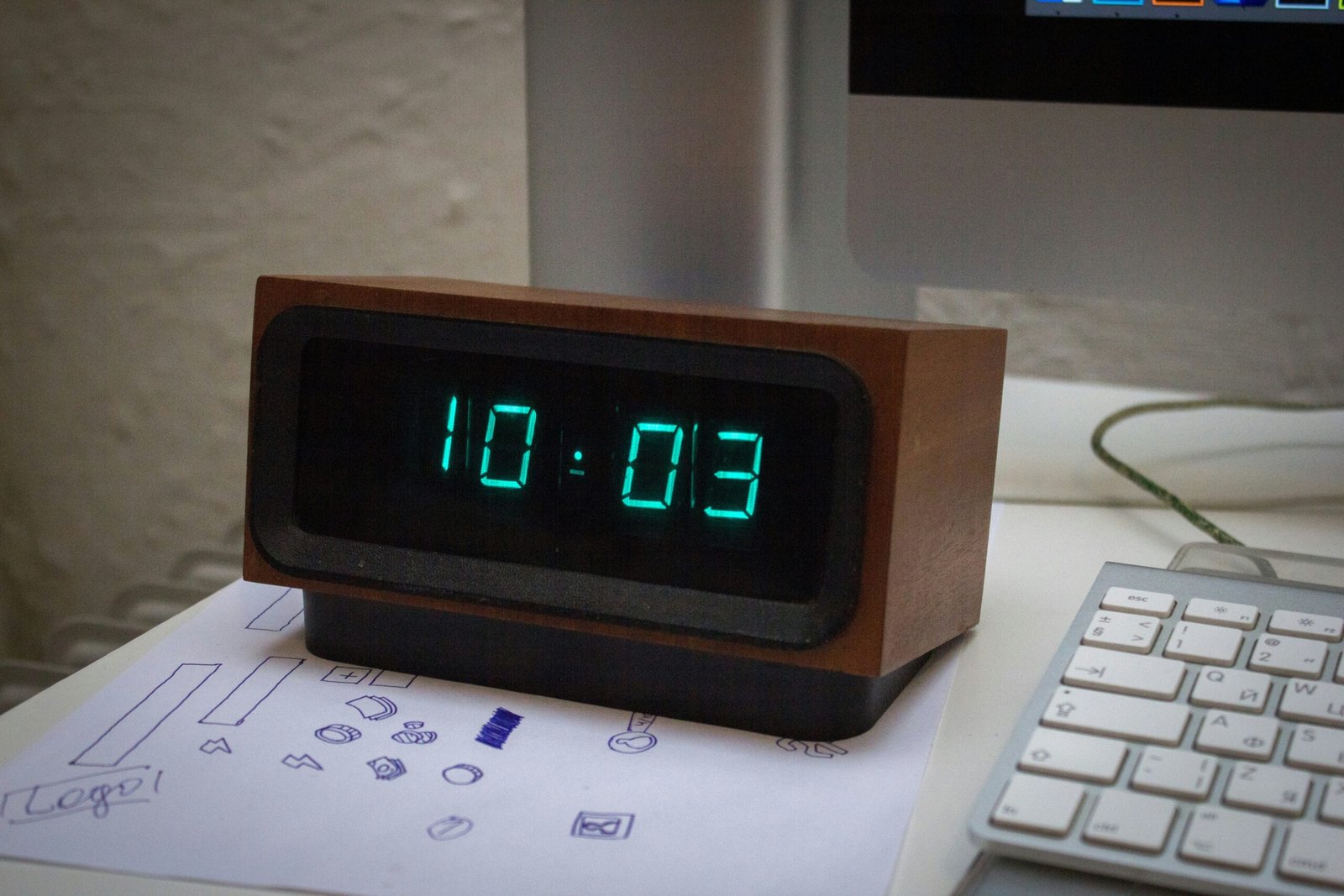
Frequently Asked Questions About Clock Widgets
Q: Do clock widgets drain my smart clock’s battery faster?
Nope! Most modern widgets are optimized for minimal power consumption. However, having dozens of active widgets might slightly increase usage.
Q: Can I create custom clock widgets?
Absolutely! Apps like Tasker (Android) let you design bespoke widgets tailored to your exact requirements.
Q: What’s the biggest mistake people make with clock widgets?
Treating them as mere decorations instead of functional tools. Don’t fall into that trap!
Conclusion: Elevate Your Smart Home Experience
Clock widgets are far more than digital ornaments—they’re powerful tools that can streamline your day-to-day life. From organizing tasks to monitoring real-time data, their versatility makes them indispensable in any smart home setup. So grab your favorite beverage (I recommend coffee), revisit those settings, and start tinkering. Trust me, your future self will thank you.
Haiku moment:
Time flows, but not lost,
Widgets guide us where we go—
Tech meets simplicity.

