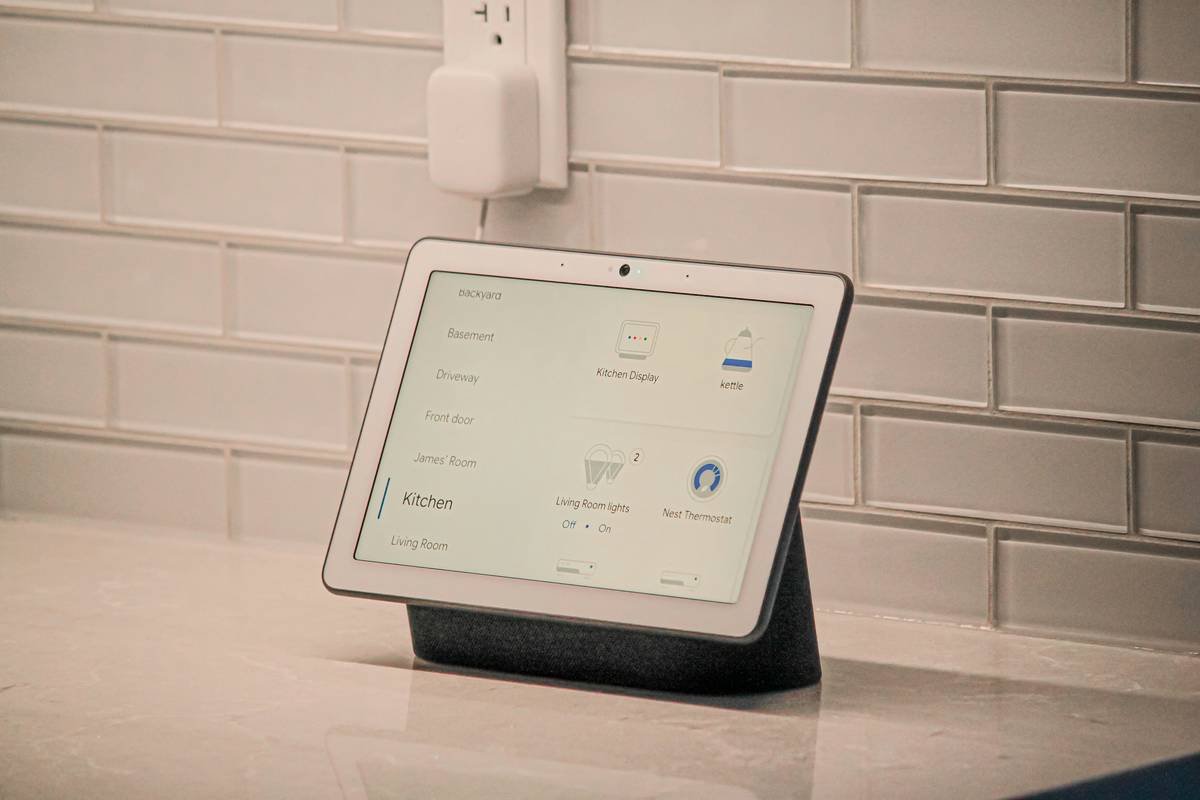
Ever stared at your smart clock and thought, “Why does this interface look like it was designed in 2005?” Yeah, us too.
Welcome to the world of clock UI customization, where you can transform that dull digital display into a sleek, personalized dashboard worthy of your smart home. In this guide, we’ll dive deep into why customizing your smart clock matters, how to do it step-by-step, and even share some quirky tips (and fails) along the way. By the end, you’ll know exactly how to make your smart clock not just functional but fabulous.
Table of Contents
- Why Clock UI Customization Matters
- How to Customize Your Smart Clock Step by Step
- Best Practices for Effective Clock UI Design
- Examples of Great Clock UI
- FAQ About Clock UI Customization
Key Takeaways
- Clock UI customization enhances both aesthetics and functionality.
- Using third-party apps or built-in settings, you can tailor your smart clock to suit your preferences.
- Poorly designed interfaces lead to frustration—don’t fall into that trap!
- The best clocks combine simplicity with personal touches.
Why Clock UI Customization Matters
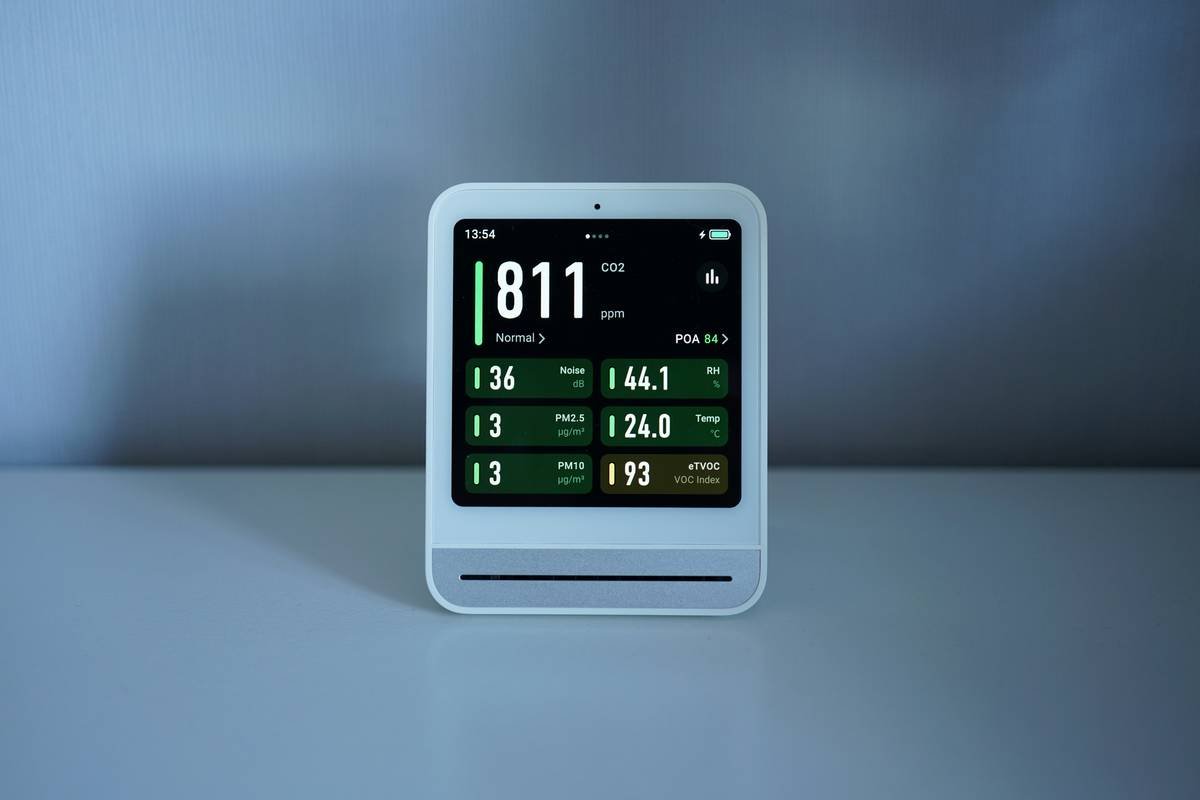
Customizing your smart clock‘s user interface isn’t just about vanity—it’s practical. Imagine waking up every morning to an interface so clunky that checking the time feels like solving a Rubik’s Cube blindfolded. Now imagine glancing at a beautifully minimalist clock face with weather updates, calendar events, and soothing colors tailored just for you. Big difference, right?
Clock UI customization lets you:
- Tailor features to match your lifestyle.
- Reduce visual noise for easier reading.
- Increase engagement without overwhelming yourself.
Remember when I accidentally set my alarm clock font size to microscopic levels? Let’s just say I woke up late enough to miss an important meeting—and had to explain to my boss why “tiny text” was now public enemy number one. Don’t be me. Prioritize usability.
How to Customize Your Smart Clock Step by Step
Step 1: Check Built-In Options
“Optimist You”: *‘There’s probably a setting for everything!’*
“Grumpy Me”: *‘Ugh, menu-diving again.’*
Most smart clocks come with basic customization options within their native apps. For example, Google Nest Hub allows you to adjust brightness, change themes, and select pre-made faces.
Step 2: Explore Third-Party Apps
If stock options feel limiting, don’t despair! Platforms like Tasker (for Android) or Shortcuts (iOS) offer advanced tweaks. These tools let you integrate widgets from other devices, sync notifications, or create entirely new layouts.
Step 3: Test & Iterate
Tweak until perfection—or at least close enough. Try different color schemes, fonts, and layouts to see what works best for your space and mood. Remember: Iteration = Innovation.
Best Practices for Effective Clock UI Design
- Keep It Simple: Avoid cramming too many elements onto one screen.
- Focus on Readability: Choose legible fonts and contrasting colors.
- Add Personal Flair: Incorporate photos, quotes, or favorite hues.
- Stay Consistent: Match your clock UI with overall smart home aesthetics.
Pro Tip Gone Wrong: One time, I decided to go full neon rainbow mode because “personal flair.” Turns out, staring at DayGlo digits at 3 AM is less inspiring and more migraine-inducing. Lesson learned.
Examples of Great Clock UI
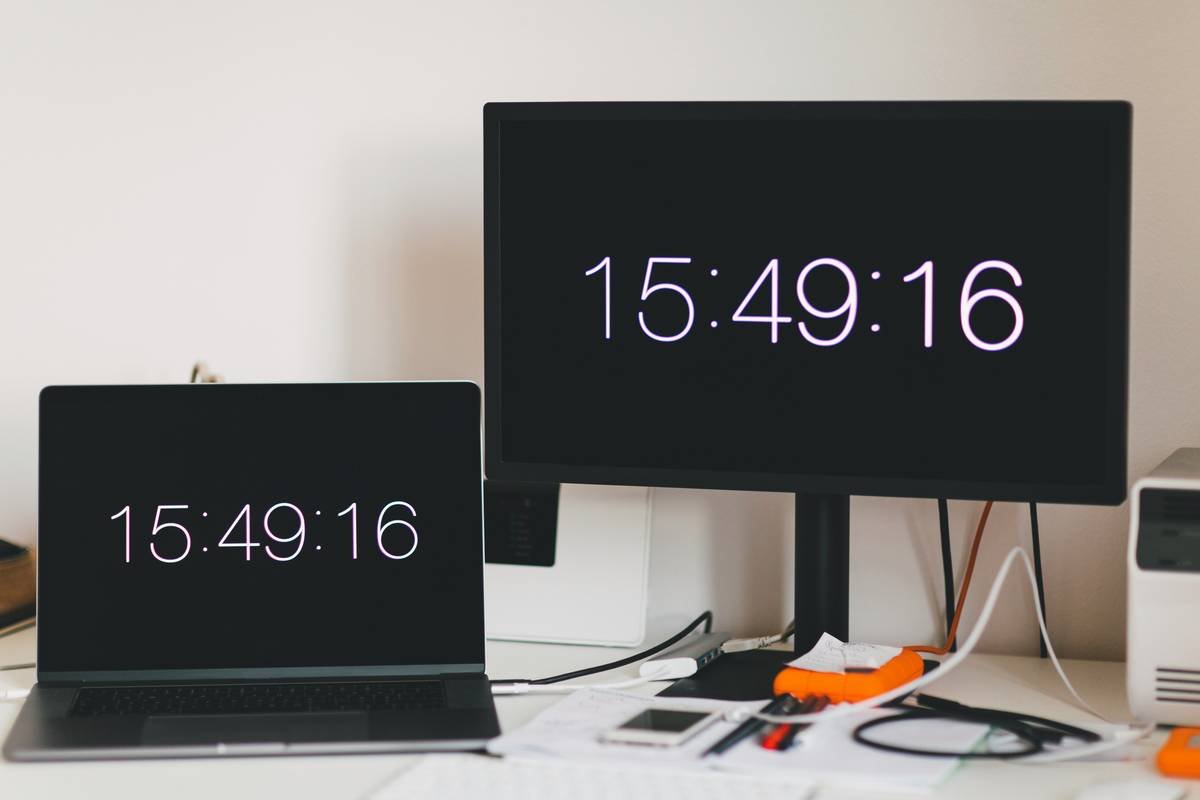
Take inspiration from brands leading the pack:
- Google Nest Hub: Minimalist yet versatile displays.
- Amazon Echo Show: Voice control meets vibrant visuals.
- Philips Hue Alarm Clock: Syncs lighting effects with alarms for gradual wakeups.
These examples prove that good design marries form and function seamlessly.
FAQ About Clock UI Customization
Q: Can all smart clocks be customized?
A: No, older models may lack extensive customization capabilities. Always check compatibility before purchase.
Q: Do I need coding skills to customize my clock?
A: Not necessarily! Most adjustments require zero code, though advanced modifications might involve simple scripting.
Q: Is there any risk involved?
A: Generally safe, but poorly configured software could impact performance. Back up original settings whenever possible.
Conclusion
Clock UI customization empowers you to upgrade your smart home tech experience. From tackling usability issues to injecting personality into everyday gadgets, mastering this skill ensures your devices work harder—and smarter—for you.
Now go forth and craft the dreamiest clock UI imaginable. But remember: Coffee first. Always coffee first.
Random Haiku For You:
Pixel glow flickers,
Customized to sunrise—
Smart home harmony.

