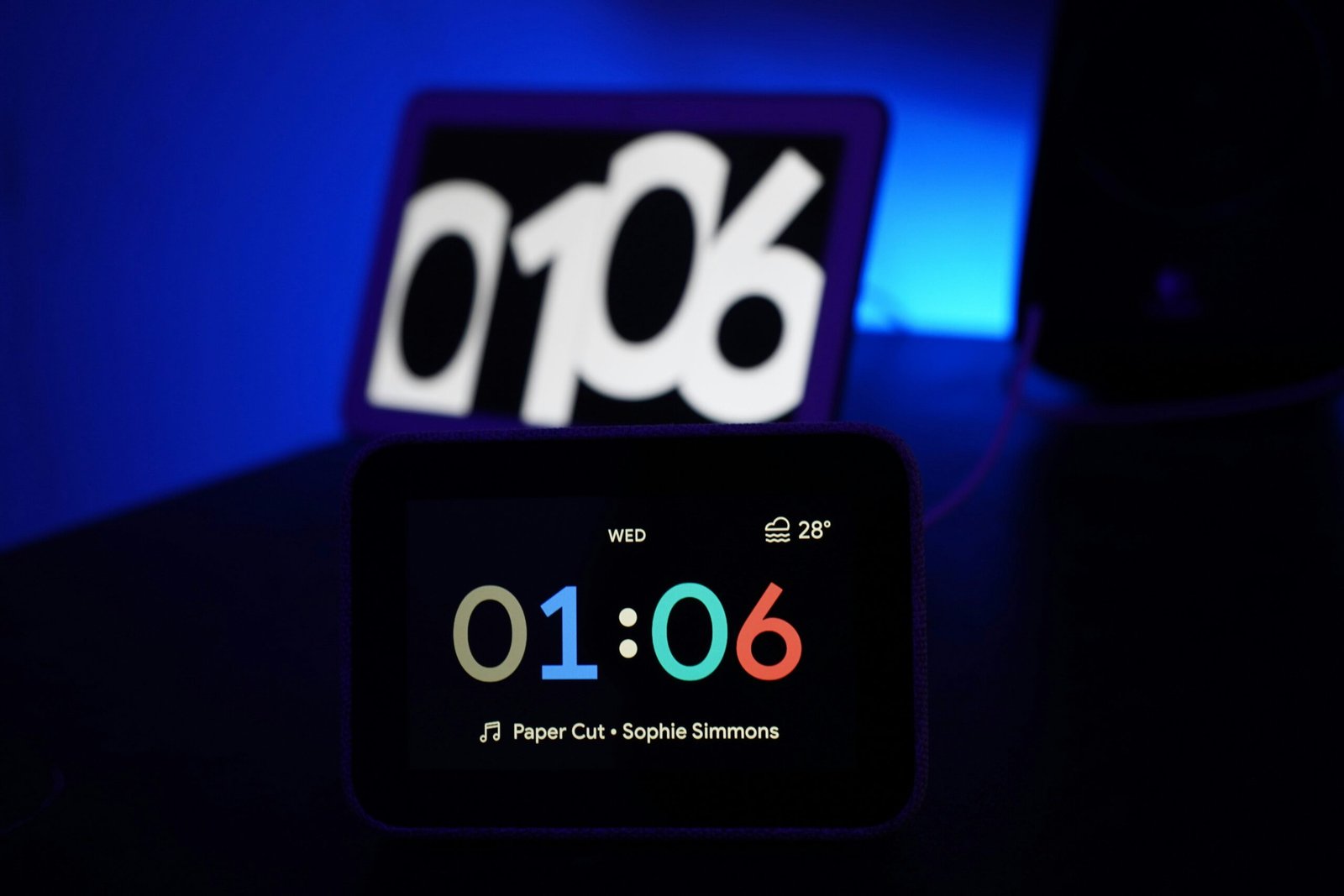
Ever been blinded by your alarm clock at 2 a.m.? Or squinted at your smart clock’s screen because it was too dim to read? You’re not alone. Whether you’re rocking a Google Nest Hub or an Amazon Echo Show, display brightness control can make or break your smart home experience.
In this guide, we’ll dive deep into why display brightness control matters for smart clocks and how to optimize it effectively. You’ll discover step-by-step instructions, killer tips, relatable examples, and even some brutally honest advice. Let’s get started!
Table of Contents
- Key Takeaways
- The Problem With Display Brightness
- How to Adjust Display Brightness on Smart Clocks
- Best Practices for Display Brightness Control
- Real-World Examples of Smart Clock Success Stories
- FAQs About Display Brightness Control
- Conclusion
Key Takeaways
- Display brightness control ensures comfort during nighttime use.
- Smart clocks like Google Nest Hub and Amazon Echo offer manual and automatic adjustments.
- Avoid setting extreme levels that strain eyes or drain battery life unnecessarily.
- Customizing display settings enhances both aesthetics and functionality.
- Poorly managed brightness can disrupt sleep cycles—and no one wants that.
Why Is Display Brightness Such a Big Deal?
I’ll admit it: I once cranked my smart clock’s brightness to max before bed. Rookie mistake. My room looked like Times Square, and needless to say, I didn’t sleep well that night. Sound familiar?
Optimist You: “No big deal—it’s just light!”
Grumpy Me: “Try saying that after three hours of staring at the ceiling.”
Here’s the issue: Poorly adjusted brightness doesn’t just mess with your mood; it affects your health. Excessive blue light exposure from overly bright displays interferes with melatonin production, making it harder to fall asleep. On the flip side, super-dim displays are basically useless when you need quick info in low-light conditions.
How to Adjust Display Brightness on Smart Clocks
Luckily, tweaking display brightness control isn’t rocket science—but it does require knowing where to look. Here’s how to do it on popular devices:
Adjusting Brightness on Google Nest Hub
- Open the device settings menu.
- Navigate to “Display & sound.”
- Use the slider under “Brightness” to adjust manually or enable “Auto brightness.”
Adjusting Brightness on Amazon Echo Show
- Swipe down from the top of the screen.
- Select “Settings,” then tap “Device Options.”
- Scroll to “Brightness” and tweak as needed. Bonus points if you turn on “Adaptive Brightness” for hands-free magic.
Expert Tips for Optimizing Display Brightness Control
1. Use Auto-Adjust Features Wisely
Let’s be real: Life’s chaotic enough without manually adjusting your clock every hour. Enable auto-brightness whenever possible—it adjusts based on ambient lighting for optimal visibility.
2. Avoid Maximum Brightness Overnight
Seriously, don’t do it. Max brightness = guaranteed insomnia. Stick to lower levels unless you’re giving a presentation (and even then, question your choices).
3. Schedule Nighttime Dimming
For extra credit, set up schedules so your smart clock dims automatically around bedtime. Many apps let you customize these routines effortlessly.
Examples That Prove It Works
Tired of theoretical jargon? Let’s talk real people. Sarah from Chicago swears her Nest Hub now blends seamlessly with her decor thanks to fine-tuned brightness settings. Meanwhile, Jake in Seattle credits his Echo Show’s scheduled dimming with finally falling asleep faster.
“My bedroom feels like a sanctuary again,” says Sarah. Chef’s kiss.
Warning: Don’t Be This Guy
One user boasted online about keeping their display at 100% all day long—to save himself the trouble of fiddling with settings. Spoiler alert: His family couldn’t stand him anymore. Learn from his failure.
Frequently Asked Questions About Display Brightness Control
Is Manual Adjustment Better Than Auto Mode?
Depends on your habits. Auto mode is convenient but may not always align perfectly with personal preferences.
Can Display Brightness Affect Battery Life?
Absolutely. Higher brightness consumes more power, especially for non-plug-in models.
Will Changing Settings Void My Warranty?
Nope! Customizing display brightness won’t harm your device—or void warranties. Phew.
Wrap-Up: Brighten Your Days—Not Your Nights
So there you have it. Mastering display brightness control might seem minor, but trust us—it’s a game-changer. From avoiding migraines to boosting sleep quality, small tweaks yield big rewards.
Remember: Auto modes are your friend, scheduling rocks, and full brightness at midnight is straight-up sabotage. Ready to upgrade your smart clock experience? Dive in and start tweaking those settings today.
And hey—if all else fails, just picture your bedroom looking less like Times Square. 😉
Like hitting refresh on an old Tamagotchi, taking care of your smart clock pays off. 🥰

