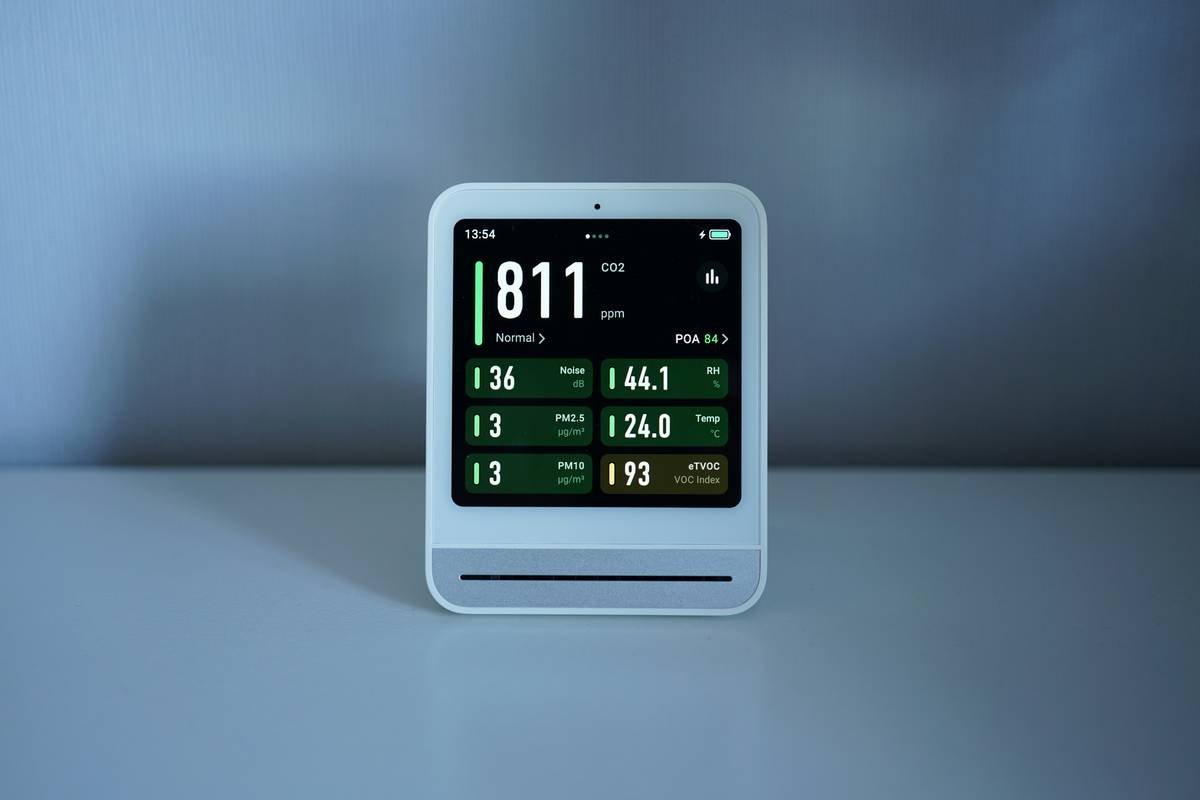
Ever wake up groggy only to squint at your smart clock, wishing the display didn’t feel like it was designed in 2005? Yeah, us too.
In today’s post: we’re diving deep into why clock screen themes matter (hint: aesthetics meet functionality), how to customize them for peak usability, and why ignoring this could mean missing out on a better home-tech experience. You’ll learn about design tips, common mistakes, and real-world examples of people rocking their setups.
Table of Contents
- Why Clock Screen Themes Matter More Than You Think
- Step-by-Step Guide to Customizing Your Smart Clock’s Screen Themes
- Top Tips & Best Practices for Choosing Screen Themes
- Real-Life Examples of Stunning Clock Screen Theme Makeovers
- Frequently Asked Questions About Smart Clock Screen Themes
Key Takeaways
- Your smart clock’s screen theme affects both functionality and mood.
- Customization options can turn even basic models into something special.
- Bright colors aren’t always best; prioritize readability over flashiness.
- Avoid using default settings if you want a truly personalized smart home setup.
Why Clock Screen Themes Matter More Than You Think
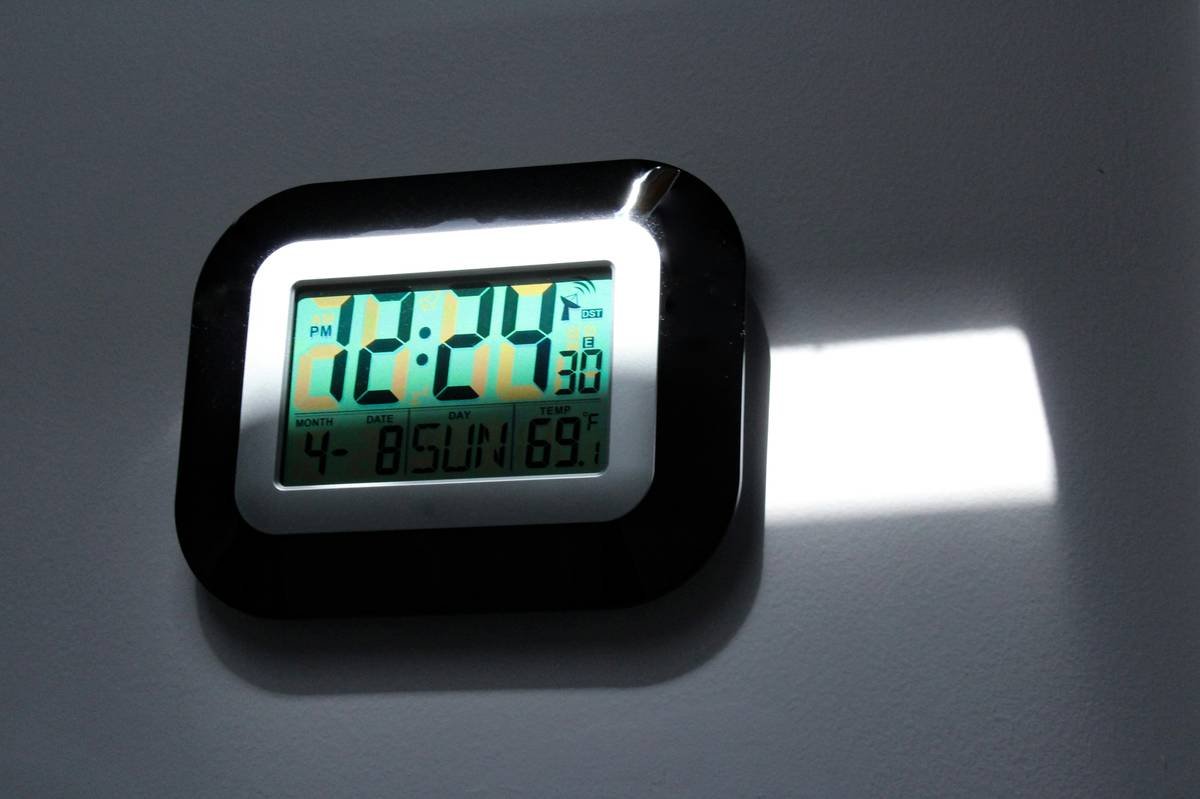
Let me paint you a picture: My first smart clock came preloaded with a garish neon grid that clashed horribly with my zen bedroom vibe. It was bad enough to keep me awake questioning life choices. And trust me, no one needs existential dread before bedtime.
This isn’t just an aesthetic issue—it’s functional too. If your clock screen is too dim or cluttered, reading the time becomes an Olympic sport. Plus, who wants visitors thinking they’ve stepped into a sci-fi movie set from the ’80s?
Optimist You: “But themes don’t impact performance!”
Grumpy You: “They DO when you accidentally hit snooze twice because you couldn’t read the damn thing.”
Step-by-Step Guide to Customizing Your Smart Clock’s Screen Themes
Step 1: Access Settings Menu
Most smart clocks have a dedicated app or menu system where you can tweak settings. Open yours—usually labeled as “Settings” or “Display Options.” Don’t panic if it feels overwhelming; stick with me here!
Step 2: Explore Preloaded Themes
Dive into the built-in library of themes. Look for ones labeled “Minimal,” “Dark Mode,” or “Sleek.” These tend to be easier on the eyes while still being modern.
Step 3: Adjust Brightness Levels
You may love bold colors but hate blinding yourself during midnight bathroom trips. Play around with brightness sliders until you find a happy medium.
Step 4: Upload Personalized Images
If your device allows uploads, use family photos, abstract art, or calming landscapes. Just avoid anything overly busy—it defeats the purpose!
Pet Peeve Corner: Why oh why do some brands insist on putting ads inside their free theme packs?! That shiny gold package might cost you zero dollars, but it’ll steal your soul with endless pop-ups.
Top Tips & Best Practices for Choosing Screen Themes
- Prioritize Readability: A fancy font won’t save you if you can’t decipher numbers at dawn.
- Match Your Décor: Extend your interior design philosophy to tech gadgets. Minimalist room? Use sleek black-and-white themes.
- Consider Accessibility: Ensure color contrast makes text legible for everyone. Accessibility wins points!
- Terrifically Terrible Tip: Never pick animated GIFs. Yes, dancing cats are fun—but not when they make mornings chaotic AF.
Real-Life Examples of Stunning Clock Screen Theme Makeovers
Take Sarah, for instance—a busy mom who transformed her cluttered clock interface into a serene botanical display. She reported not only waking up happier but also reducing stress levels. Her secret weapon? An app called CalmClock Pro ($5 worth every penny).
Another standout case involves Mark, whose nerdy love for space inspired him to recreate his clock face as a galaxy-themed marvel. Now, instead of dreading alarms, he says it feels like embarking on interstellar adventures daily.
Frequently Asked Questions About Smart Clock Screen Themes
Q: Are all smart clocks compatible with custom themes?
A: Nope. Always check compatibility before buying—some budget-friendly models lack this feature entirely.
Q: Can I create my own theme designs?
A: Absolutely! Several apps like ThemeBuilderPro let users craft unique layouts by dragging and dropping elements.
Q: Do screen themes drain battery faster?
A: Generally, no. But high-brightness settings combined with animations will guzzle juice quicker.
Conclusion
We covered a lot today: the importance of clock screen themes, step-by-step customization guides, actionable tips, inspiring success stories, and FAQs. Remember, your smart clock is more than just a gadget—it’s part of your smarter home ecosystem.
Now go forth, choose wisely, and transform that drab display into something delightful. Or, y’know, stick with the defaults…but really, what’s the fun in that?
(Bonus Haiku): Neon fades to calm,
Themes breathe life into screens;
Goodbye eye strain, hi.

